 Treecat Help
Use Treecat with Claude, ChatGPT, Cursor and other AI assistants
Connect an AI assistant to Treecat's MCP server to ask about inventory, sales and jobs, and, if you allow it, make changes, asking you first wherever Treecat would. In beta.
You can connect Claude, ChatGPT, Cursor or any assistant that supports MCP (the Model Context Protocol) to your Treecat store. Ask about your inventory, sales and jobs in plain language and, if you allow it, have the assistant create and edit listings, crosslist, relist and delist them, asking you first wherever Treecat would: before listing, delisting, deleting or changing prices. AI assistants are in beta.
The setup steps and server address are on Settings → AI assistants in Treecat.
What is the Treecat MCP server?
It is the connection point AI assistants use to work with your Treecat store:
Your assistant opens a Treecat sign-in page. Choose the Google account you use for Treecat. There is no API key or client ID to create; the assistant registers itself when it connects.
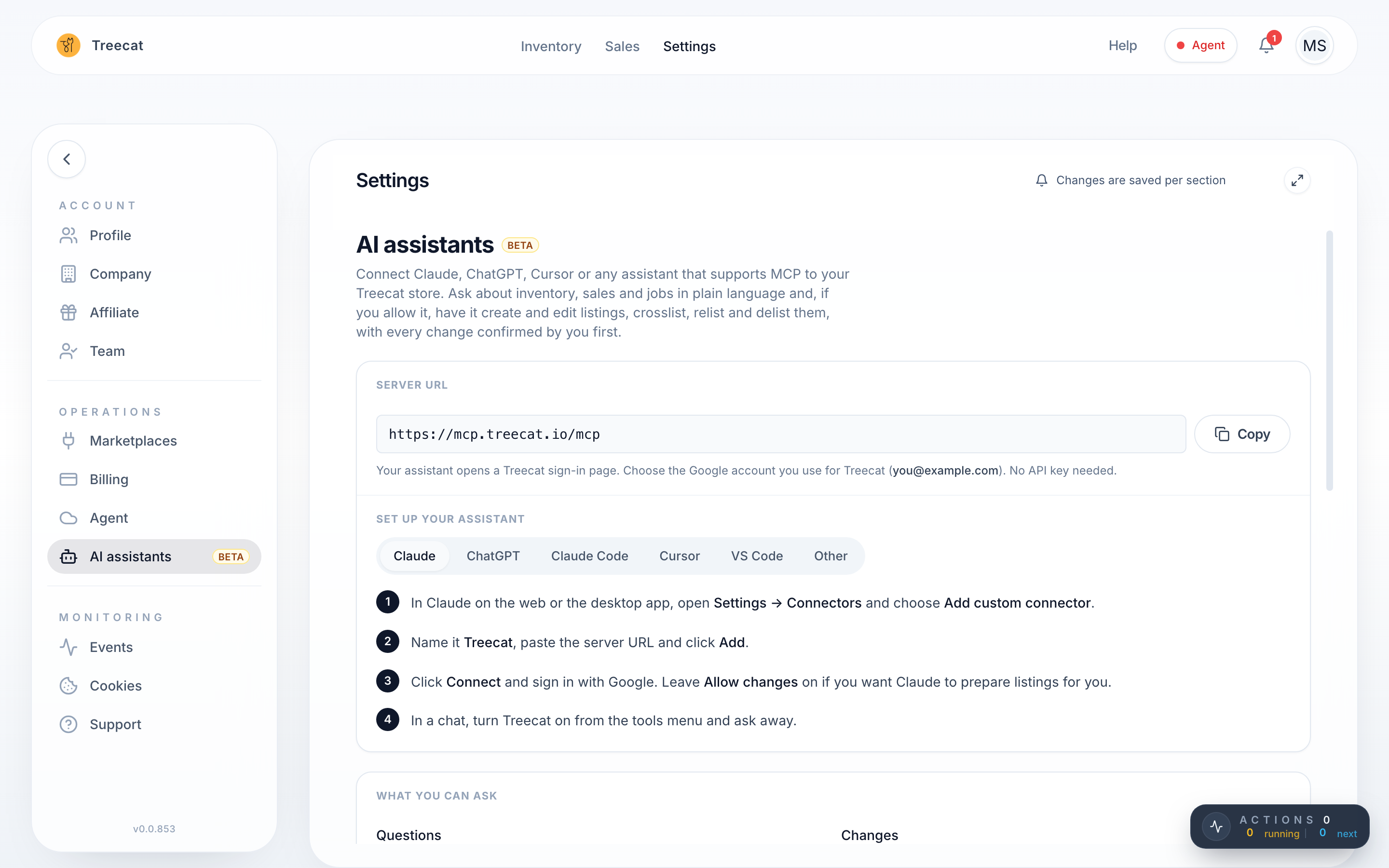
Connect your assistant
Claude
- In Claude on the web or the desktop app, open Settings → Connectors and choose Add custom connector.
- Name it Treecat, paste the server URL and click Add.
- Click Connect and sign in with Google. Leave Allow changes on if you want Claude to prepare listings for you.
- In a chat, turn Treecat on from the tools menu and ask away.
ChatGPT
- In ChatGPT on the web, open Plugins, choose Add (top right), then Add custom MCP server.
- Name it Treecat, paste the server URL under Connection and pick OAuth for authentication.
- Accept the warning with I understand and want to continue, then choose Create as a plugin.
- Choose Connect Treecat and sign in with Google.
- In a chat, type @Treecat and ask away.
On a ChatGPT Business or Enterprise workspace, an admin may first need to allow custom MCP servers.
Claude Code
- Run this in a terminal:
claude mcp add --transport http treecat https://mcp.treecat.io/mcp - Start Claude Code, type
/mcp, pick treecat and choose Authenticate. - Sign in with Google in the browser window that opens.
Cursor
- With Cursor installed, click Add to Cursor on Settings → AI assistants, or add the server to
~/.cursor/mcp.jsonwith the server URL. - In Cursor's settings, find treecat under MCP, click Connect and sign in with Google.
VS Code
- With VS Code installed, click Add to VS Code on Settings → AI assistants, or add the server to
.vscode/mcp.json. - Start treecat (the MCP: List Servers command) and allow the sign-in when VS Code asks. Copilot Chat in agent mode then sees the Treecat tools.
Other assistants
Any assistant that supports remote MCP servers (Streamable HTTP) with OAuth sign-in can connect. Paste the server URL; the assistant finds the Treecat sign-in page on its own.
Teach your assistant: the Treecat skill
The Treecat skill tells your assistant how to work with your store the right way: it asks you first wherever Treecat would, fills the marketplace forms instead of guessing, and answers questions about Treecat from these help articles with links. Add it once, next to the connector.
- Download it from Settings → AI assistants in Treecat, or from https://mcp.treecat.io/skill/treecat.zip.
- Claude (web and desktop): open Settings → Capabilities → Skills, choose Upload skill and pick the downloaded file.
- Claude Code: unzip it into your skills folder:
unzip -o ~/Downloads/treecat-skill.zip -d ~/.claude/skills. - ChatGPT, Cursor and others: unzip it and add
SKILL.mdto your project instructions or rules.
What can I ask?
Questions (always available):
- "Which of my accounts need reconnecting?"
- "What has been listed on Poshmark for more than 60 days?"
- "What sold in September, by platform?"
- "Why didn't my Whatnot listing go up?"
Changes (only if you allow changes; the assistant asks you first wherever Treecat would):
- "List this jacket on eBay and Poshmark."
- "Crosslist these five items to Mercari."
- "Relist my Poshmark items older than 60 days."
- "Drop this item's price to $18 on eBay."
- "Add the photos I just attached to this jacket." (ChatGPT: attach the photos to your message.)
- "Turn these photos into draft listings for eBay and Etsy."
Ask how Treecat works
Your assistant can also answer questions about Treecat itself, such as how to install the agent, why an item won't list or what you're billed for. It looks the answer up in Treecat Help (this site) and links the article section it used, so you can read it yourself.
Is it safe?
- You approve what Treecat would ask about. Before listing, delisting, deleting, repricing or any other change Treecat asks you to confirm, the assistant shows a preview, and nothing happens until you confirm it in the chat. Saving a draft, editing photos or the labels of one item happen straight away, as in the app.
- The same rules as the app. The assistant fills the same forms and runs the same checks as Treecat: a listing it cannot save, you could not save in the app either, and it is told why.
- Read-only if you prefer. Turn off Allow changes on the sign-in page and your assistant can only read.
- Up to 25 items per request. Each confirmed change covers at most 25 items, so nothing can sweep your whole inventory at once.
- Deletes, moves and quantity are opt-in. Deleting items, moving listings between accounts, changing quantities and billed AI autofill only work if you turn on Allow deletes, moves and quantity changes when connecting. To add it later, reconnect the assistant with that option on.
- Signed in, not shared. Assistants sign in with Google and never see your marketplace passwords or Treecat keys.
How do changes work?
Changes are queued, like actions you start in the app. Once a change runs, the assistant gives you a request id and can check the job's status for you. If a job fails, it explains why in plain language, using the same causes as Error messages explained.
How do I disconnect?
Remove the Treecat connector in your assistant's settings. Connections you stop using expire after 30 days.
It's in beta
Tools and answers may change, and an assistant can get things wrong, so read each preview before you confirm. If something is off, tell Treecat support from Settings → Support or at [email protected].
Last updated on