 Treecat Help
Create listings from photos with Image Autofill
Drop product photos into Inventory → Image Autofill and Treecat's AI groups them into products and writes the listings for you to review and list.
Open Inventory → Image Autofill, drop in your product photos and choose where to publish. Treecat's AI groups the photos into products and writes the title, description and other details for each one. Review the drafts, then list them. Drafts cost nothing; a fee applies only if you list an item and it sells.
Create listings from photos
- Open Inventory → Image Autofill.
- Drop your product photos into the upload area: JPEG, PNG or WebP, up to 10 MB each and up to 100 images per job.
- Under Publish to, choose the marketplaces.
- Start the job. Treecat analyzes the photos and groups them into products.
- Review the grouping. Drag a photo onto another product to move it, or onto the empty area to split it into a separate product, and edit titles if needed.
- When the AI has filled the details for each marketplace, open each draft, check it, add your SKU if you use one, and save.
- Click List when you are happy.
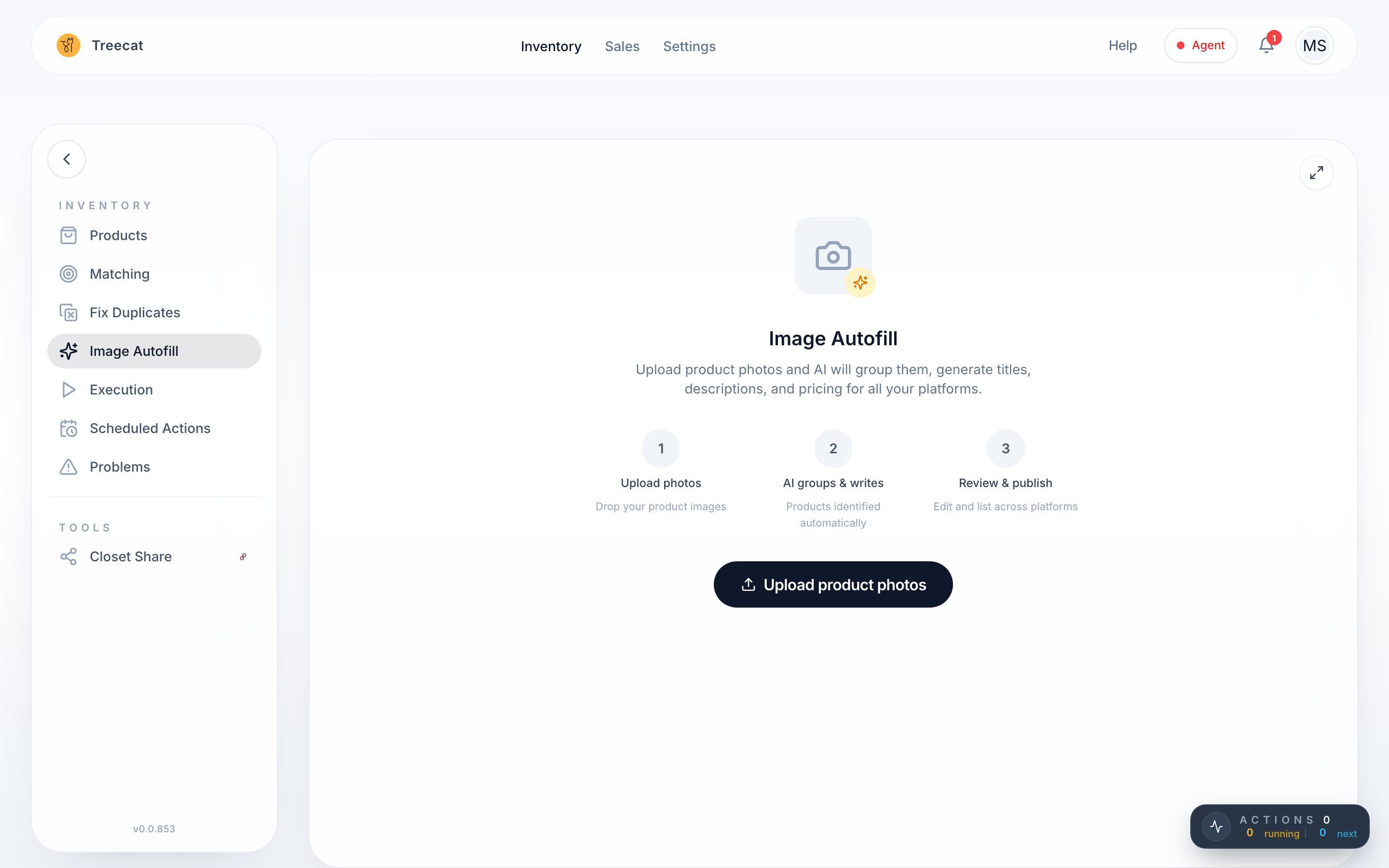
Past jobs appear on the Image Autofill page, so you can come back to one later.
What works best?
- The AI works best on common items. It can struggle with antiques and unusual collectibles.
- Always review category, condition, size and shipping before listing, as you would with any AI-filled form.
Does Image Autofill cost anything?
Creating drafts is free. AI listing is a billable event, so if you list one of these items and it sells, that sale is charged once, like any other billable sale.
Can an AI assistant do this for me?
Yes. If you connect an AI assistant such as Claude or ChatGPT, it can start a photo listing job from photo links, show you the products, make the edits you ask for, and create the listings only after you approve. See AI assistants.
Last updated on