 Treecat Help
Account and data
Get help from Treecat support
Contact Treecat support from the Help page or at [email protected], book a call, and include the details that get your question answered fastest.
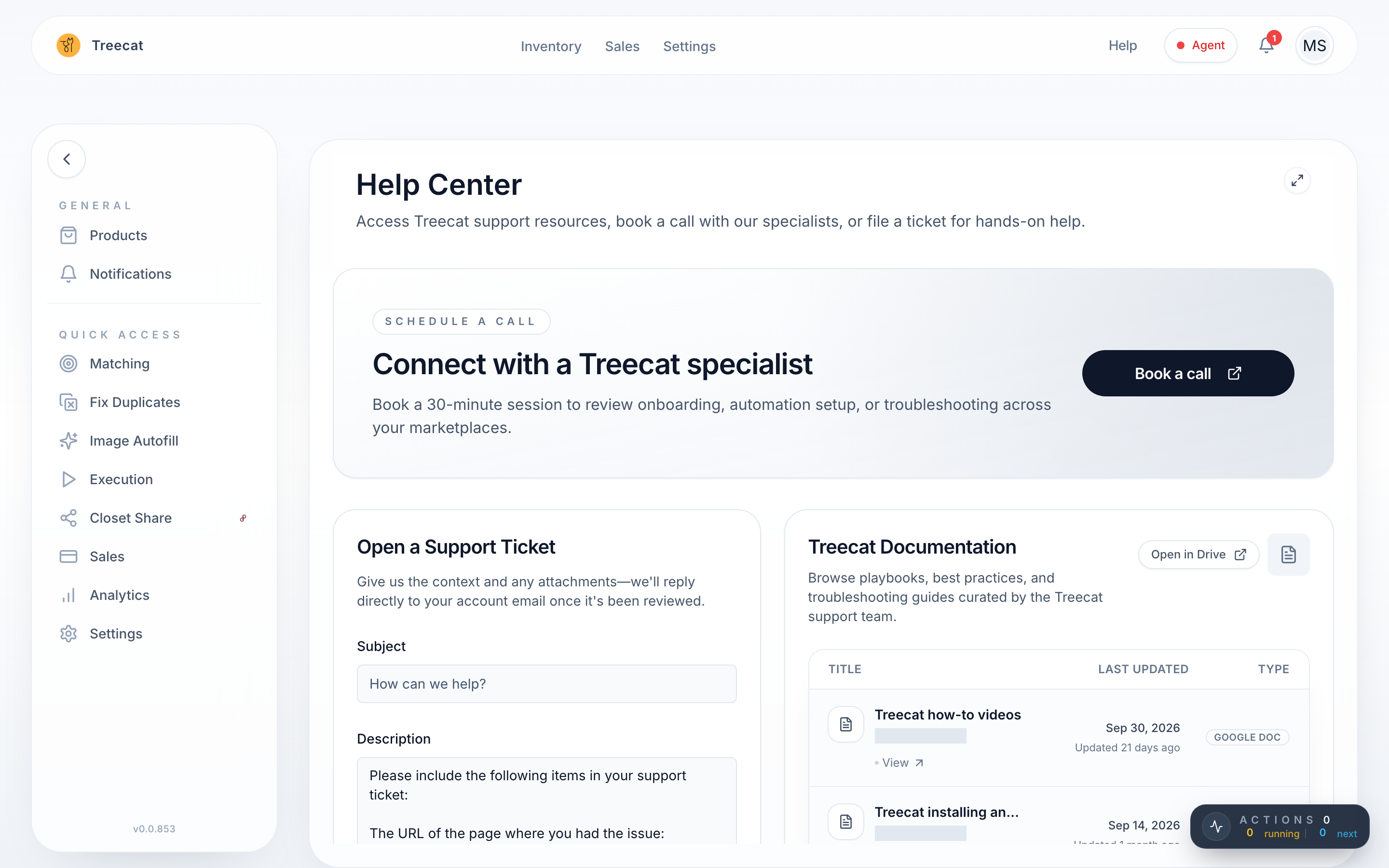
Click Help at the top of the Treecat app to open the Help Center, where you can file a support ticket or book a call, or email [email protected]. Include the Treecat URL of the item, a screenshot of what you see and what you were doing; that speeds things up a lot.
Ways to reach Treecat support
- Help Center: click Help at the top of the app. File a ticket, browse documentation, or book a call.
- Email: [email protected].
- Book a call: on the Help page, click Book a call for a free 30-minute session with a Treecat specialist, to review onboarding, automation setup or troubleshooting across your marketplaces.
- In the app: Settings → Support links to Treecat's documentation and troubleshooting guides.
What to include
- The Treecat URL of the item (copy it from the browser address bar). For a sale, the URL of the sale.
- A screenshot of what you see, including any error message.
- What you were doing, and on which marketplace and account.
- For agent problems: on Settings → Agent, click Copy agent details for support and paste them into your message. Keep the agent running so Treecat support can look at its logs.
- For an AI assistant problem: the request id or job id the assistant quoted.
Never send your marketplace passwords. Treecat support never needs them.
Check these first
Many questions answer themselves in a minute:
- Inventory → Execution shows whether each marketplace is Healthy, Degraded or Unhealthy, and the job history.
- Settings → Events is the log of every action, with its status and message.
- The item's Events tab shows what happened to that item.
- Inventory → Problems finds sales whose delists did not finish.
- Error messages explained says what each kind of error means and what to do.
Common topics
Last updated on