 Treecat Help
Find items with inventory filters
Use the filters on Inventory → Products to find exactly the items you need, such as everything listed on eBay but not on Mercari, and save them as presets.
Use the filter bar on Inventory → Products. Each filter narrows the list further, results update as you click, and the number next to the Inventory heading shows how many products match. For example, to find everything listed on eBay but not on Mercari, add a Status condition Listed on eBay and a second condition Not Listed on Mercari.
The filter bar
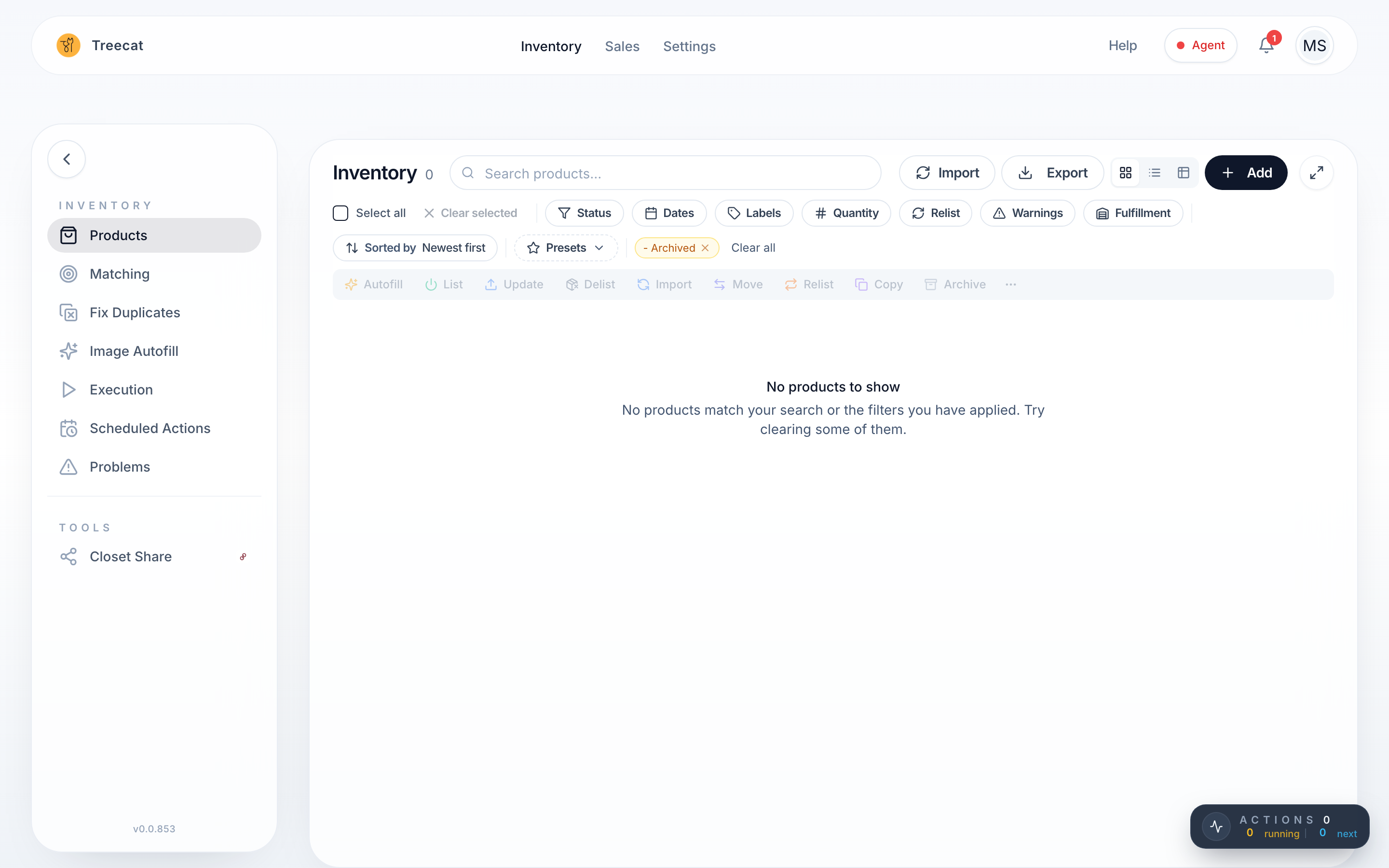
From left to right:
- Search products: free-text search across your products.
- Filter buttons: Status, Dates, Labels, Quantity, Relist, Warnings, Fulfillment and Accounts.
- Sorted by: the order products appear in.
- Presets: saved filter combinations.
- Active filter chips: one chip per filter applied, followed by Clear all.
How do filters work?
- Click a filter button to open its panel.
- Add a condition or tick the options you want. Results update immediately; there is no Apply button.
- Click anywhere outside the panel to close it.
An active filter shows a small count on its button (for example "Quantity 1") and a chip at the right of the bar (for example "Qty > 0"), and the product count updates.
To remove one filter, click the × on its chip, or open its panel and click Clear. To remove every filter, click Clear all.
Tip: Your filters are saved in the page address (URL). Bookmark a filtered view or send the link to a teammate and it opens with the same filters.
Why are some items hidden? The "- Archived" filter
By default the Products page hides products with the Archived label. That is what the orange "- Archived" chip means (the minus sign means "excluding"). Click the × on that chip to see archived products. To bring the default back, use Labels → Exclude → Archived.
Filter reference
Status
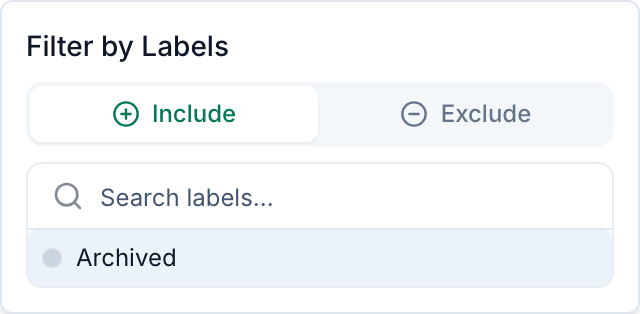
- Click Status, then Add status condition.
- Pick a status: Listed (live), Not Listed, Archived, Ready to List, Draft (saved as a draft) or Pending (a listing action is in progress).
- Click the marketplace icons it applies to, or Select all. With more than one account on a marketplace, each account is its own numbered icon.
Add more conditions to combine them. To find items you still need to crosslist, use Not Listed on the marketplace you want to expand to.
Dates
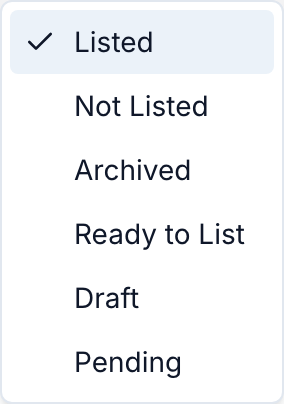
- Click Dates, then Add date condition.
- Choose Import date, Listing date or Relist date.
- Choose in the last (a number of days), is between, is after or is before, and enter the days or dates.
"Import date in the last 7 days" is a quick way to review everything you added this week.
Labels
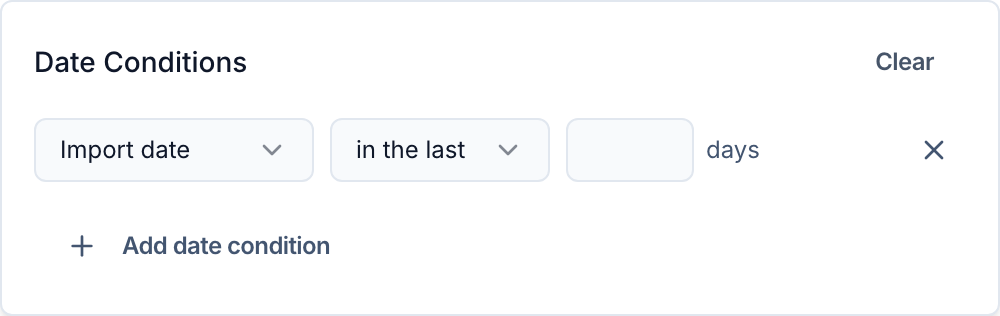
Labels are tags you apply to products, such as a storage location or batch date. Click Labels, choose Include (only products with the labels) or Exclude (hide them), then search for and click the labels.
Quantity
Click Quantity, then Add condition, choose = Equal to, < Less than or > Greater than, and enter a number. "Qty > 0" shows items in stock; "Qty = 0" shows sold-out items.
Relist
Click Relist and choose a store: Not filtered (default), Any store or a specific marketplace. Optionally enter a Relist frequency (days) minimum, maximum or both, in whole numbers.
Warnings
Shows products with sync warnings so you can fix them. Click Warnings, then the account icons to check. Each row is a marketplace and each icon one of your accounts; hover to see the account name.
Fulfillment
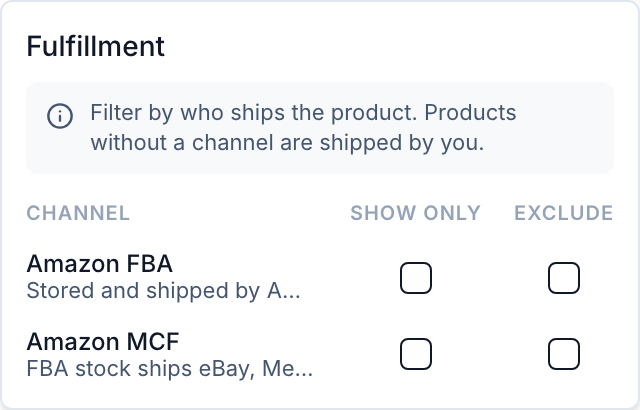
Filters by who ships the product. Amazon FBA is stock stored and shipped by Amazon; Amazon MCF is FBA stock fulfilling orders from other marketplaces. Tick Show only or Exclude for each. Products with no fulfillment channel are shipped by you.
Accounts
Click Accounts and tick marketplaces or individual accounts. With nothing ticked, all accounts are shown. Disconnected accounts appear under Removed; tick Any removed account to find products still linked to accounts you no longer use.
Sorting
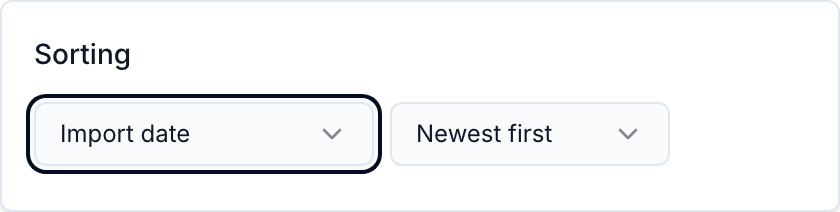
Click Sorted by and choose Import date, Price, Listing date or SKU, and the direction (for example Newest first). Sorting by listing date, oldest first, is useful for relisting stale items.
Presets
- Set up the filters and sorting you want.
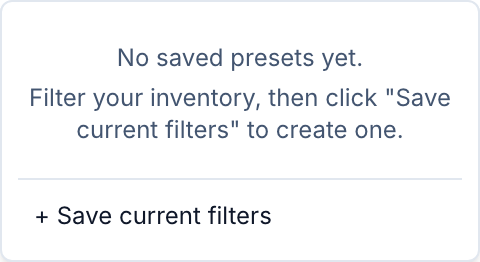
- Click Presets → + Save current filters and name the preset.
- Next time, open Presets and click it under My Presets. The number beside each preset is how many filters it contains.
Useful combinations
- Ready to crosslist: Status Not Listed on Poshmark + Quantity > 0.
- This week's imports: Import date in the last 7 days, sorted by Import date, Newest first.
- Stale stock: Listing date before a date 90 days ago + Quantity > 0, sorted by Listing date.
- Needs attention: Warnings on all accounts.
- Everything Amazon ships: Fulfillment Amazon FBA, Show only.
Troubleshooting
- I can't find a product I know exists. Check the chips on the right of the filter bar; the default "- Archived" filter often hides it. Click Clear all and search again.
- The product count looks low. The count reflects your active filters. Clear them to see your full total.
- A filter panel won't close. Click an empty area of the page outside the panel.
Last updated on